Switches
About B2Win
B2Win allows you to use the full features of the interface of B2Win Suite without opening the interface, by using simple switches to generate reports. This will enable you to add a new device for each specific scenario according to what your use case is and help you run it in a cron job if needed.
Using these switches help in automating conversion of reports. The following are examples of how to best automate the B2Win conversion:
-
Creating a device that automatically converts to a specific file type without going through the intermediate B2Win interface. We can create a device for each format, such as B2Excel, B2Word, B2PDF and so on
-
Convert a report to PDF, with logo, with a specific Password protected (all options in the B2Win interface can be set in a pre-defined file)
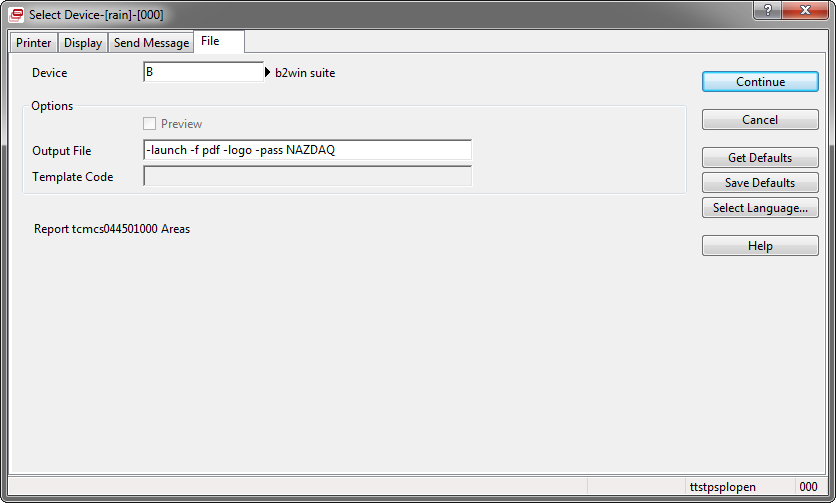
Example of B2Win run
As a result, the pdf file will be opened.
B2Win gets the input in two ways:
- Manual Mode – switches passed to the device manually for each run.
- Input File – A predefined input file passed to the device which contains all commands needed for each run.
Manual Mode
This chapter describes all the switches available for B2Win
Getting started with Switches
B2Win supports different formats. In order to choose the format, you have to use this command:
-format <format type>
Specify the format type of the file (shortcut -f).
Possible values are:
- xlsx - Microsoft Excel format
- txt - Text format
- html - HTM format
- pdf - PDF File
- xml - XML File
- rtf - RTF file
-mode <mode name>
Some formats work with several modes of conversion, if not mentioned, it will take the default mode that was set in B2Win.
Available modes are:
-
table - Remove all duplicate titles and headers and also organize the resulting data in a table format, either automatically or based on the customization designed earlier specifically for this report. (Applicable for Microsoft Excel**,** html, xml and Text)
-
as-is - Report will be taken as-is into the chosen format with all headers and titles. Fonts and report customization will not be taken into account (Applicable for Microsoft Excel, Microsoft Word, PDF and Text only)
-
native - The report will be exported to the chosen format with all font definitions from Baan (Applicable for Microsoft Word and PDF only).
-
custom - Report will be converted to PDF using the design that was generated through b2Diz - The PDF designer using a friendly interface to produce PDF files with different font sizes, types and colors, and can change and move text from the original layout (Applicable for PDF only).
-
Standard - Report will be converted to the standard format into the chosen application with all headers and titles (Applicable for HTML and XML only).
-
Macro – The report output will be exported to the chosen application while a pre-defined macro will run on the resulting data (Applicable for Microsoft Excel and Microsoft Word)
Actions
After you are done setting the switches, you need to specify the action you want to make, whether to launch, print, send or archive by using the following switch commands (you can use more than one)
-launch (not supported when client is not online)
Launch the output file
-download
Download the output file to the browser (Shortcut -d)
-sdownload
Download the output file back to the ERP server, location should defined in DownloadPath in bsuite.ini
-to <recipient>
Define the recipient list of e-mail addresses (comma separated).
Sending through the mail client when your B2win Suite Client is online, if not then it will send the email through SMTP.
When you want the email to be sent to the sender’s email then you can use -to mailme.
(For more options for sending check Sending Email from B2Win in page 10)
-fax <fax number>
Output file will be sent to the defined fax number.
-archive <path> (not supported when client is not online)
Copy the output file to the location defined in <path>. The path should be accessible from the local machine.
Use “” if the path contains spaces (Shortcut -arc).
-sarchive <path>
Copy the output file to the location defined in <path>. The path should be on the B2win Suite server machine. Also, this path should be included in the Server White-list Paths in B2Win Suite in System Settings. (Shortcut -sarc)
Note: for the -archive and -sarchive switches you should define the full path & file name (using “\” and not “/” even in UNIX). If you didn’t define the name of the file (the path ends with “\”), the name of the file will be generated according to the default configuration for File Parts set in B2Win.
-print <printer name> (not supported when client is not online)
Print the output file on the specified Windows printer on the local client machine. If <printer name> is empty it will print on the default printer. Use “” if the name contains spaces (Shortcut -p).
-sprint <printer name>
Print the output file on the specified Windows printer on the B2win Suite Server. If <printer name> is empty it will print on the default printer. Use “” if the name of the printer contains spaces (Shortcut -up).
-noaction
In this case all actions and related parameters will be passed to the B2Win Suite but the RUN button will not be automatically performed. It allows the user to review and edit the settings before pressing RUN.
Example:
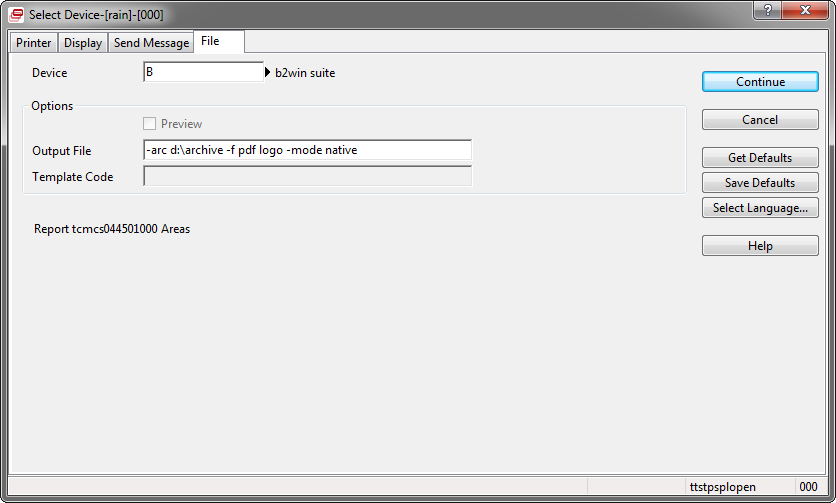
Other switches
-zipped
Compress the output file to .zip extension (Shortcut -z)
-b2w <user >
Take a specific b2w file for customizer that belongs to this report and use it for this specific run.
-logo
Add logo and footer to output file, based on definitions (In relevant formats). Header and footer are defined in Logos section in B2WIN. If you do not want to use a logo then use “none” (shortcut -l).
Applicable for Microsoft Excel, Microsoft Word, PDF and Html
-filename
This is the name of the generated file (shortcut -flm)
Document settings
-font <font size>
Specify the font number (shortcut -ft).
Applicable for Microsoft Excel, Microsoft Word, PDF and Html
-orient <P/L>
Specify the orientation of the generated document (shortcut -on).
Applicable for Microsoft Excel, Microsoft Word and PDF
-paper <paper type>
Specify the paper type to be used (shortcut -pt).
Applicable for Microsoft Word and PDF
-macro <macro alias>
Assign the macro alias and not the path to use it. (shortcut –mc)
Applicable for Microsoft Excel and Microsoft Word
- topmargin
Assign the top margin (shortcut -tm)
Applicable for Microsoft Word and PDF
-leftmargin
Assign the left margin (shortcut -lm)
Applicable for Microsoft Word and PDF
-background <none>
If none then the output will be without background, if the switch is alone then it will be with background. (Shortcut –bg)
Applicable for PDF
Switches for PDF Format only
-sign <options>
Add the user signature to the PDF document. Possible options are:
- all - Sign all pages of the PDF file (default)
- last - Sign last page only in the PDF file
- first - Sign first page only in the PDF file
-signpos <XYposition>
Specify the X and Y position of the user signature of the PDF file (The X and Y axis, beginning from the lower left corner of the document) (shortcut -snp).
As an example, 230x200 will locate the signature in row 230 and column 200 of the file (row and column are measured in “points”).
-verticalfont <Number>
Specify the vertical font scaling. 100 is the original scale (shortcut -vft).
-horizontalfont <Number>
Specify the horizontal font scaling. 100 is the original scale (shortcut -hft)
-linespacing <Number>
Specify the space distance between the lines. 100 is the original distance (shortcut -ls).
Supported in formats: pdf
Secure PDF settings:
-noprint
Use this option if you wish to disable the print option in the PDF file (shortcut -np).
-noedit
Use this option if you wish to create a PDF file that can’t be edited with Acrobat Writer (shortcut -ne).
-nocopy
Use this option if you wish to disable the copy and paste options in the PDF file(shortcut -nc).
-pass <Password>
Use this option to add a password to the PDF file (shortcut -pw).
Sending Email from B2Win
In order to send emails, you have to use the –to switch. In addition, there are other options you can use for sending email, such as:
-cc <recipient>
Define a carbon copy recipient list of e-mail addresses (comma separated)
-bcc <recipient>
Define a blind carbon copy recipient list of e-mail addresses or (comma separated).
-subject <subject of e-mail>
Specify a subject for the e-mail message. Use “” if the subject contains spaces (shortcut -s).
-receipt
Request a return receipt when sending file by e-mail (shortcut -r).
-priority <Priority>
Define a priority for the e-mail message. Possible values are high, low (shortcut -pri).
-attach <file>
Use this option to attach additional files to the output coming out of Baan. Specify the full path of the attachment. Use “” if the path contains spaces. This switch can be repeated (shortcut -a).
Example:
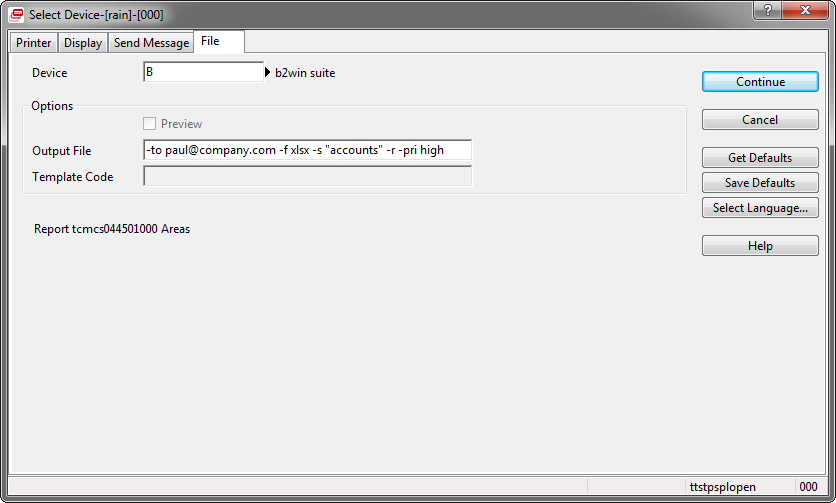
Using -run switch
This switch is used in order to be able to run B2Win Suite in auto mode using all the defaults saved for the current user and report in B2win Suite including the actions. This switch will also allow the user to overwrite part of the defaults by using other switches after the -run.
-run <other switches>
When using -run without other switches then the saved defaults in b2win suite for this report will be used as is, unless you use other switches with it.
For example, using the following switches:
-run -f pdf
This means that the switch “-f pdf” will override the defaults saved previously in B2win Suite for this user and report.
Input File Mode
You can define a file that B2Win will read the commands from when it is launched.
This file should be located inside $BSE/nazdaq8/settings/dev directory.
File=<file name>
An Example file that have a set of commands:

The file content
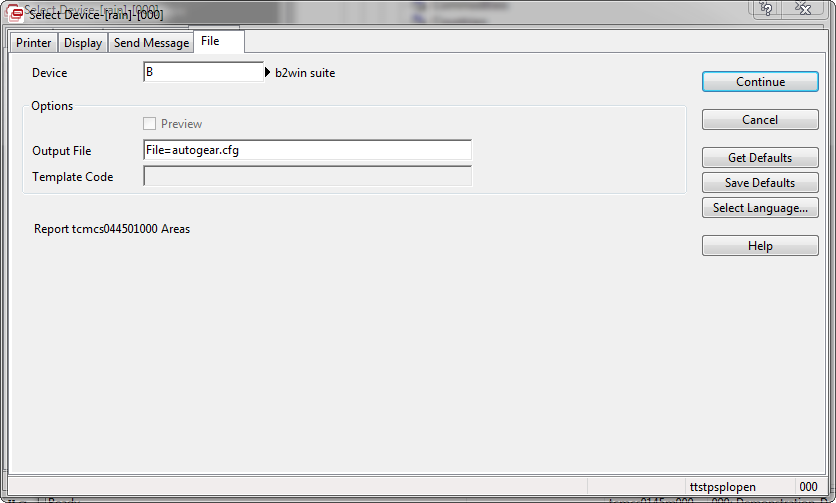
Device
When running B2Win with the example configuration file above (auto.cfg), it will perform the following:
Convert the report to PDF and archiving it into: c:\archiving folder
Convert the report to text file and send it to jamal@nazdaq-it.com with the attachment file c:\cerr.txt and also archiving it to c:\baan4\archive
Convert the report to HTML file in standard mode and send it to jamal@nazdaq-it.com with subject: ”htm standard”
Examples:
-to george@nazdaq-it.com,bader@nazdaq-it.com –format xml –receipt –priority high
-archive c:\Secured\important.pdf –format pdf –sign –nocopy –noprint –noedit –pass NAZDAQ –logo 550
-to George@nazdaq-it.com –format rtf –logo –paper Legal –attach /bsp/home/tems.doc
-print \\5b\HPlaserjet –format csv
You can use “;” to start a new command line
-to eassa@nazdaq-it.com –ft 14 –f pdf -launch ;-p –ft 14 –on L –f doc
Running B2Win from a Program Script
The following is a sample script for calling device “B2WIN” from a program script:

function main()
{
   long reportnr1

   spool.fileout = "-f pdf –archive c:\archive\" |* Parameters for the device
   spool.report = "rtcmcs044501000" |*The name of the report
   spool.device = "B" | *The name of the device
   spool.open( "", spool.device, 0) | *Activate report
   reportnr1 = brp.open(spool.report, spool.device, 0) |*Query to select records for the report
   if reportnr1>0 then
      select * from tcmcs045
      where tcmcs045._compnr = 550
      selectdo
         brp.ready(reportnr1)
      endselect
      brp.close(reportnr1)
   endif
   spool.close()
}