AI Assistant
B2Win Suite includes an AI Assistant built directly into the FlowCode Editor — the code editor used in all scripting-enabled nodes. It lets you describe what you want in plain English and get working code back instantly, without leaving your workflow.
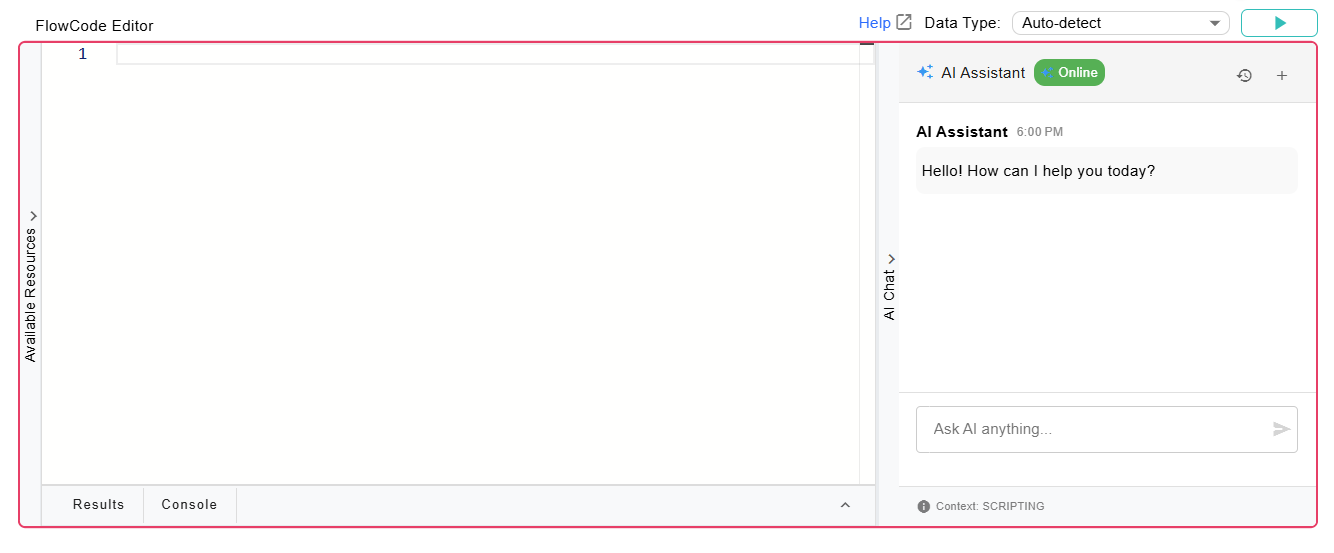
Where It's Available
The AI Assistant is available in every node that uses the FlowCode Editor.
What You Can Do
Open the AI Chat panel inside any FlowCode Editor and describe what you need in plain English. The assistant can:
- Generate code — Describe your goal and get a ready-to-use script or SQL query.
- Explain code — Paste in an existing script and ask the assistant what it does.
- Debug code — Share an error or unexpected result and get suggestions for a fix.
- Refine and iterate — Follow up with additional instructions to adjust the generated output.
Context Awareness
The AI assistant is context-aware. The Available Resources panel in the FlowCode Editor exposes your workflow's properties, input fields, utility classes, and code snippets — and this context is automatically shared with the assistant. This means:
- SQL suggestions reference your actual input schemas and field names.
- Script suggestions use utilities and properties already available in your workflow.
- Generated code is ready to use with minimal or no manual edits.
Prerequisites
The AI Assistant requires AI/LLM settings to be configured by an administrator. To enable it, go to Administration → System Settings → General and fill in the AI/LLM Settings section.
Once configured, the AI Chat panel becomes active in all FlowCode Editors across the system.
Example
Suppose you are writing a Custom Script to filter a table to only rows where the status column equals "Active". Instead of writing the script manually, open the AI Chat panel and type:
Filter the input table to rows where the status column equals "Active"
The assistant will generate it for you inside the editor.