Reports actions
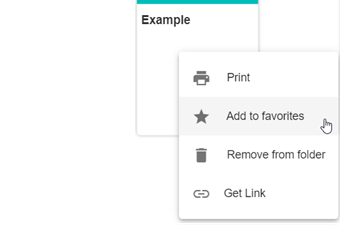
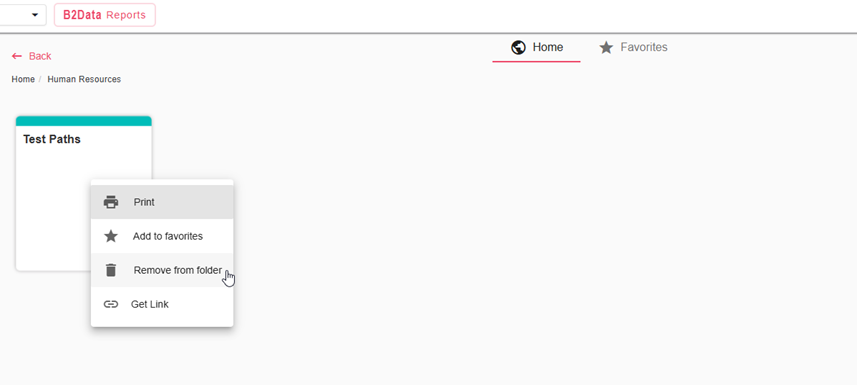
Right click on a report opens a menu of actions, we will discuss these actions in this section.
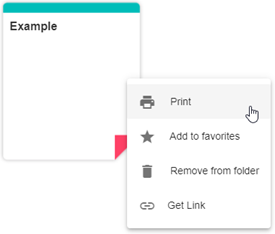
- Print - Prints the report by running the workflow, can be done also by double clicking the report itself
- Add to favorites - Adds and instance of the report to the Favorites tab
- Remove from folder- Removes the report instance from the current folder
- Get Link - Creates a link for the deployed workflow that it may be accessed and run by users outside of B2Data Manager and B2Data Builder
Print report
Published reports are only those that include Input-form in the workflow nodes. There are two cases when printing a report:
-
A report that opens Input-form
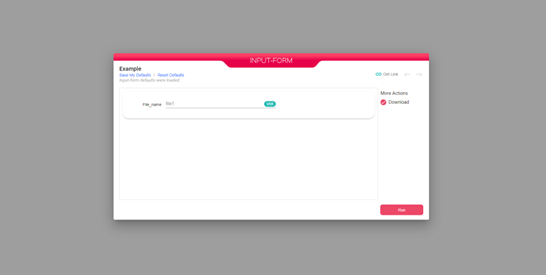
An input-form is opened, that includes fields to be filled and actions like Download or Launch (in case provided):
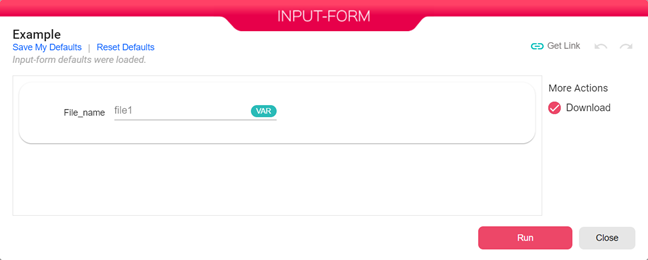
This input-form includes a field called “File_name” and a Download action, the default value of File_name is “file1”, it can be changed so when running the report with the Download action checked, the file will be downloaded with the given name.
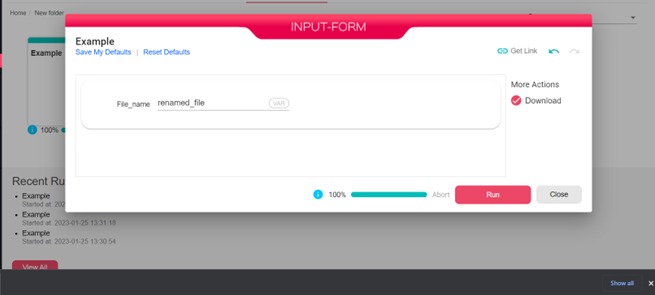
Save my defaults will save the changes the user made for next runs. In order to use the default values click on “Reset Defaults”. The changes can also be undone using the Undo / Redo buttons.
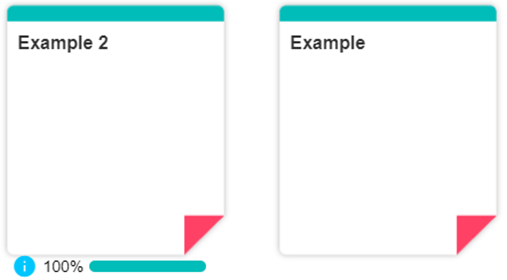
The progress bar displays the success percentage of the current run.
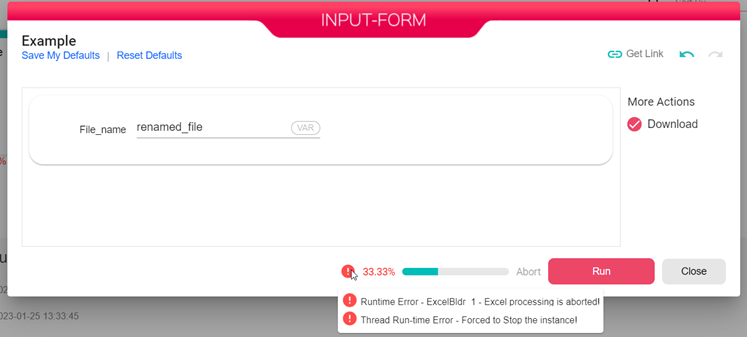
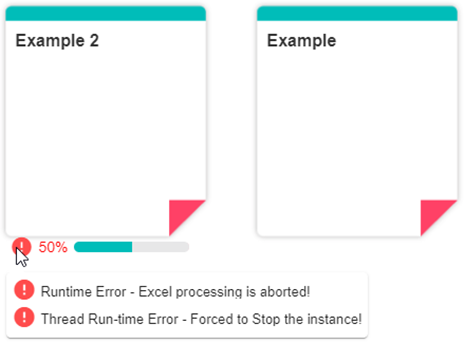
Messages (Information, Warnings or Errors) appear next to the progress bar.
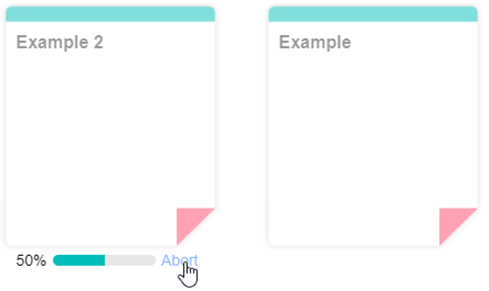
Abort will cancel the current run, it is clickable while printing the report:
-
A report that does not open Input-form
Clicking Print from the menu or double clicking runs the report with its nodes.
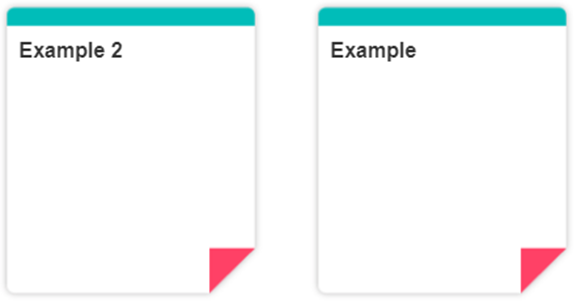
After printing the report (same progress bar appeared in the input-form):
Can be aborted while printing (running):
Messages appear next to the progress bar:
Add to favorites
Click on “Add to favorites” to add an instance of the report in the Favorites tab:
In order to remove a report instance from the Favorites tab, go to Favorites -> Right click on the report -> Remove from favorites:
In case a workflow is offline, a message will appear under the report:

Get link
Opens a dialog settings for the link that the manager wishes to create:
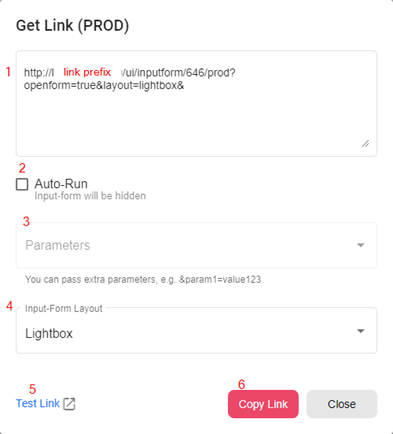
- The generated link to use, including the picked settings. The link prefix will be provided automatically according to the user’s browser
- When checked, the input-form will not open after visiting the link, the workflow will run automatically using the picked settings
- Input fields from the input-form appear here. Also extra parameters can be passed by manually typing them in the link. e.g ¶m1=value123
- Choosing input-form layout:
-
Lightbox
-
Embedded - the input-form will fit in the page the link is added to. The input-form can be embedded in an external application.
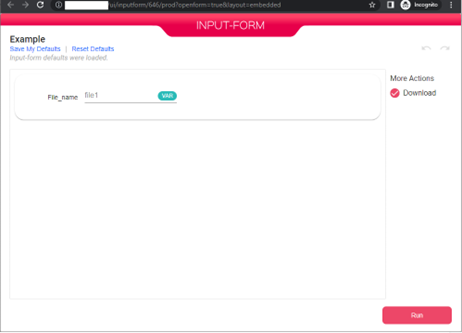
The input-form in the example covers the whole page and is resizable according to the page size
- Test Link opens the link in a new tab so the manager may test that everything works as desired before sending the link to other users
- Copies the link to the clipboard