Settings
In this section we will talk about the system settings for how the B2Win Suite Server operates, and how to change the way it works.
To access B2Win Suite settings, from the left sidebar click on System and then Settings and you will get all the General, Common Data, B2Data and B2Output settings, each of them contain a list of fields and switches for the system, we will go over each one in details according to their categories.
-
General
Contains all system general settings for the B2Win Suite.
-
General Settings
Server Label - Add a label at the top of the header in the system, it can be any text you want.
Server White-list Paths– The white-listed location from the B2Win Suite server that applications can access while running, only the specified locations can be accessed for performing: Archiving/Attachments/Browsing files, for allowing all paths you can type: * for any location.
Fonts Path – Some servers such as Linux is missing some needed fonts that are used while converting to PDF file, in this path we look for the missing fonts, for example if you’re working on Linux most Linux systems are missing the well-known font cour.ttf, placing it in this folder will fix the missing font error in PDF.
Clean temporary files -
Additional Fonts – Some fonts are missing specific encoding, so we add additional font to them so the missing charsets will be taken from the additional font.
Auto Create User – When you are working from an ERP System as the Input server, you can turn this switch On and then B2Win Suite System will automatically create the user that is running B2Win if it doesn’t already exist in the system, so that the user can work with the same user name in the ERP and B2Win Suite without the need to login in both systems, the device will redirect you to be logged in Web interface.
Execution Applic Timeout - You can set the timeout for any executable execution that is used in B2WInSuite
Deactivate non-active Users after – After how many days to de-activate the non-active users, according to when is the last time that they logged into the system, this will free the license for this user (Minimum days is 30)
User Default Send Mode – The default sending mode for each user, this will be used when the user didn’t specify his sending mode for all the users.
Thousand Separator & Decimal Separator – These values are used when converting to Excel, B2Win Suite system will need the Input thousand separator which is used in the report data that is coming from the ERP system.
Note that if some users have different values for this setting, then they can set it in Profile -> Settings (For advanced usage only)
-
Desktop Clients
Auto Update Client (On Connect) – When a B2Win Suite Client connects to the server it will be auto updated with the latest client version.
Check Client device same Host/IP – If you experience any problem with a mismatched host, on a cloud based or connecting to a different network with different IP, turning this switch off can solve the problem of checking if the host or IP mismatch.
-
Email SMTP Settings
Here you can find all the settings related to the SMTP sending, when enabled and set, then users can send through these global SMTP settings without setting it per user.
-
AI/LLM Settings
You can enable AI/LLM settings, to get the ability to use it in B2WInSuite.
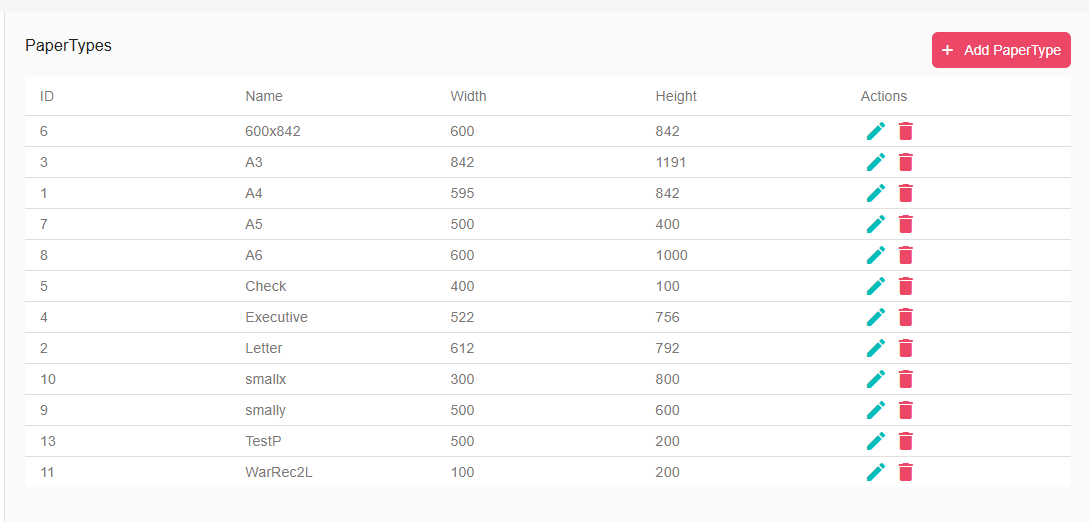
Under System-> Settings -> Common Data -> Paper Type you can add paper type name, width and high you can add as many paper types as you want, edit and delete the unnecessary once
-
-
Encodings
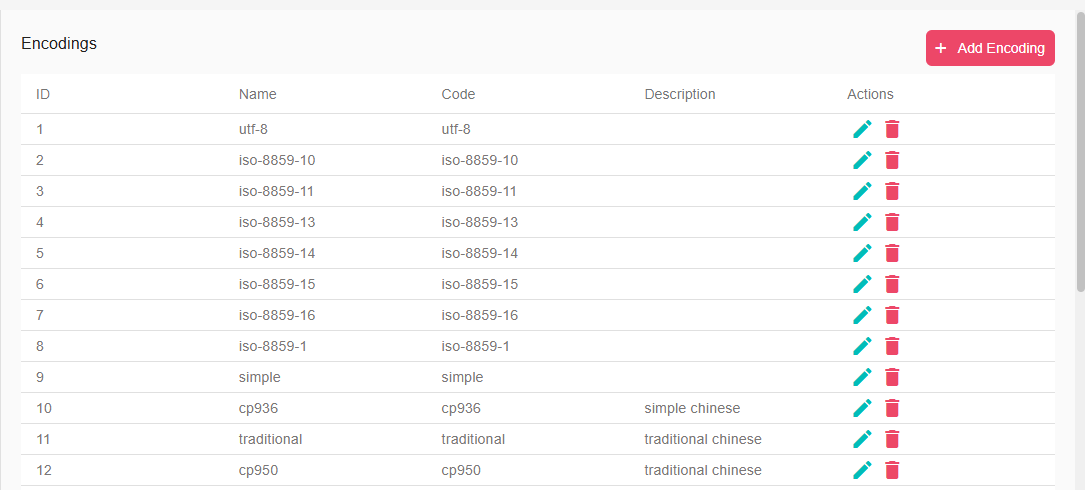
Under System-> Settings -> Common Data -> Encoding you can add an Encoding name and code, you can add as many Encodings as you want, edit and delete the unnecessary once
-
Languages
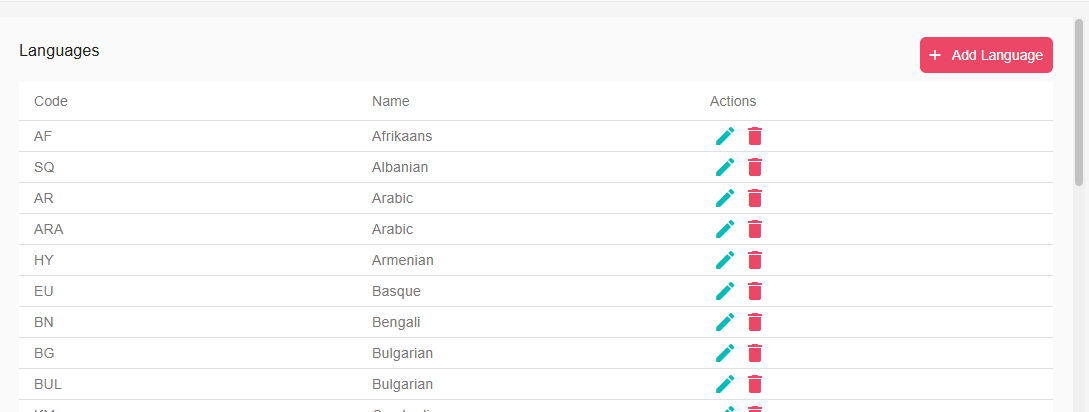
Under System-> Settings -> Common Data -> Languages you can add a Language name and code, you can add as many Languages as you want, edit and delete the unnecessary once
-
Currencies
Under System-> Settings -> Common Data -> Currencies you can add a currency name and code, you can add as many currencies as you want, edit and delete the unnecessary once
You find documentation on all B2Data settings in the developer manual
-
Alerts
You find documentation on all B2Data settings in the developer manual
-
Compiler
You find documentation on all B2Data settings in the developer manual
-
Storage
You find documentation on all B2Data settings in the developer manual
Clear Runs After – You can specify after how many days to clean the old runs in the system, if you specify this field to 0, then it won’t clean anything, by default it’s a month (30 days)
Design Per Language – Having the report designs per language or not. Used when the design for report X printed in language A is different from when it’s being printed in language B.
In this case when this option is On, when saving the design, the system will save it for the current language of the report. So for each language you can have different design (This works with the PDF\Excel Designer)
Multiple Designs – You can have multiple Customizations/Designs for each report, if you turn this switch on, you will see a list of designs in the B2Design application to select the design you want to use in the conversion.
When it is switched off, each report will have one design.
On Print free used session - Free used session on print
Convert text to UTF-8 - Convert the text coming from the ERP to UTF-8
Native Excel Asis - When running Excel with asis mode, run as native mode
CSV Separator - The separator to be used for CSV format
Allow Bidi – Some Hebrew reports need this switch on to work correctly.
Include Full Font in PDF – This will include all the used fonts inside the PDF.
Boxing Font in PDF - The font size to be used with the boxing font in PDF
Header Distance – For PDF or Word by default we specify the distance between the top of the page and the top of the logo header.
Allow Arabic – If you’re using Arabic fonts with Arabic encoding, you need this switch to be On.
Fix PDF on upload - When set, fix the pdf on upload to B2Win Suite. PDFs such as background, logo, footer or signature.
PDF/A Type - Set the PDF type
Display Debug Messages – We covered the Run log in the reports chapter, you can have more debug messages to help you trace errors or in case something goes wrong (For advanced users only)
-
SmartEngine
Fax Prefix: Prefix to be added to every fax number being populated
Fax Suffix: Suffix to be added to every fax number being populated. Together with the Fax prefix, the e-Fax syntax is generated based
No Message With Fax: In case you do not wish to get a fax confirmation, use “Yes”
Use Two Level Business Partner – If you do not have a contacts table in your ERP, this option will try to minimize the use in the contact level
One Business Partner per Contact - This will restrict the numbers of business partners per contact to one. Meaning every contact can be linked with one business partner.
-
System Defaults
We have talked about how B2Win have defaults, B2Win system default is the default that is being loaded when you load a report without having user default or report defaults. You can edit the system defaults from: System –> Settings -> B2Output -> System Defaults.
-
Global Variables
You can add a Global Variable, which is a variable that you get from the database you defined in the External database list.
-
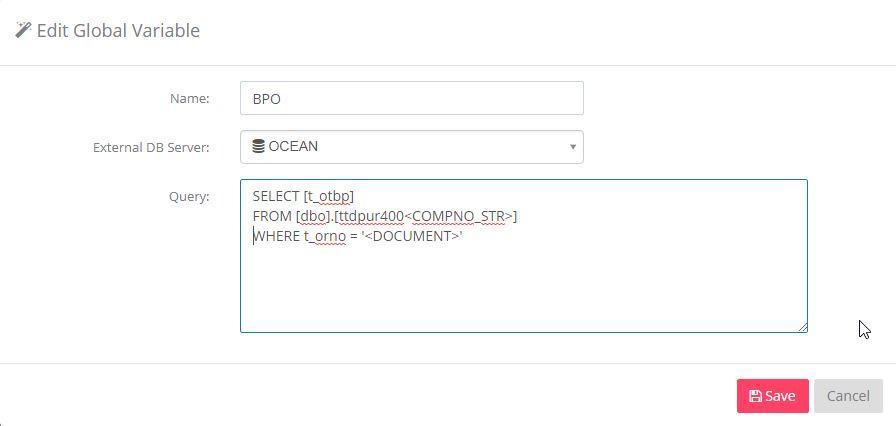
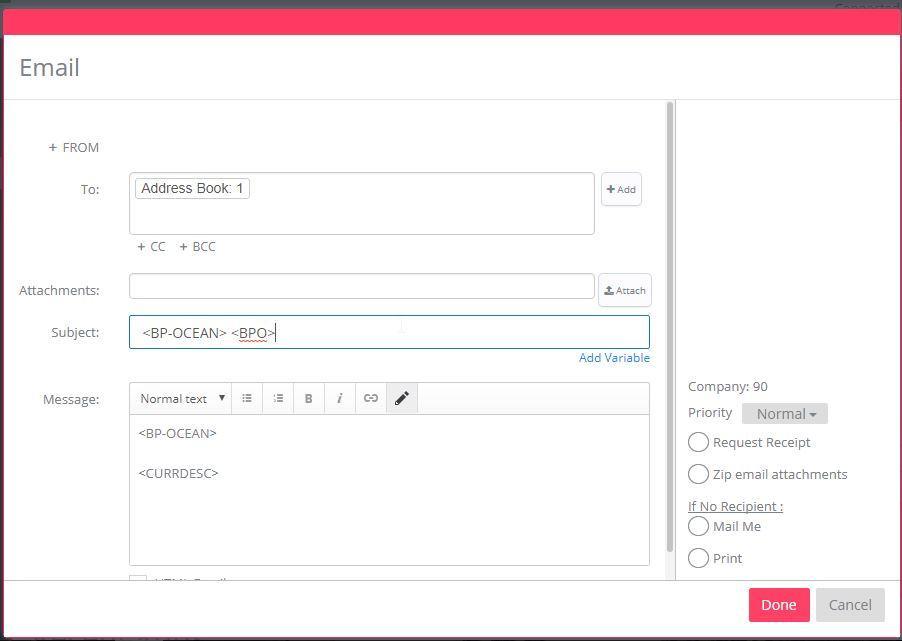
After setting the query, you can use the name you assigned as a variable in the applications.
In this example the variable is <BPO>