Basics
B2Data Components
Workflow Terminology
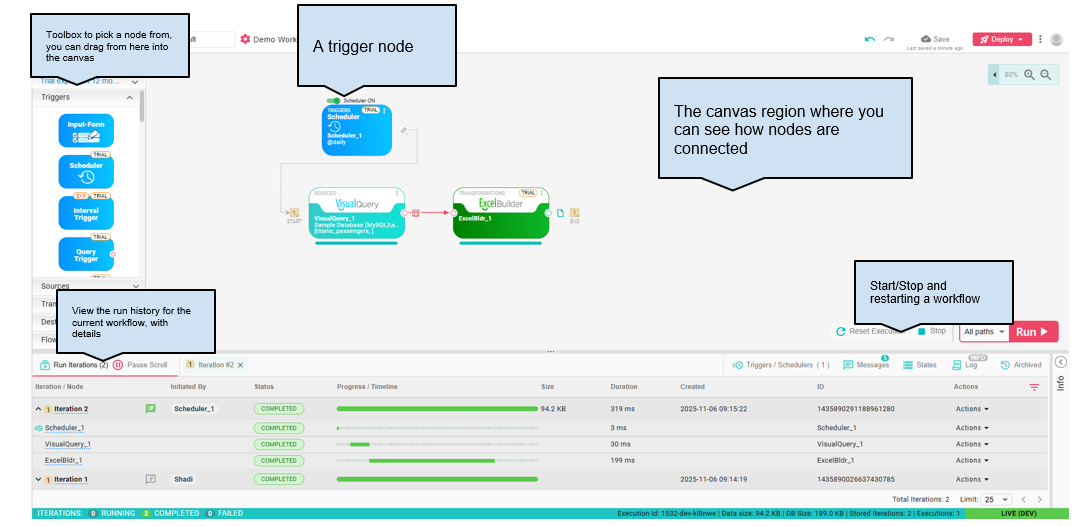
B2Data Manager - Where you see the list of workflows in development and in deployment, from there you can open for each workflow their builder to continue developing them, more on this in the Manager manual.
B2Data Builder - The builder where you develop your workflow.
Builder Canvas - The region where you drag the nodes and connect them together, and have an overview of the workflow DAG (Directed Acyclic Graph).
Nodes Toolbox - The list of nodes that is available in the system, you can choose from, and they are categorized by categories.
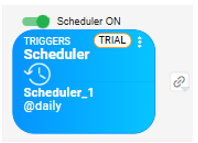
Trigger Node - A trigger node is a node that can start a new Iteration by it self it can be a Scheduler, or file listener, HTTP Service and when it fires it creates a new iteration in the running workflow, trigger has a On/Off button to activate it or turn it off.
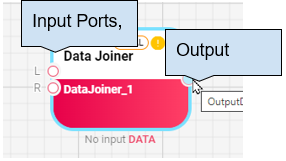
Node - The node is the building blocks of a workflow, workflow can contain one or hundreds of nodes connected together, each node can have one/multiple inputs using multiple ports or one port, and also can have an output.
Node Input/Output - We mentioned that each node can have input/output or input or an output, the Input/Output can be a
DataFrame - a tabular data that can come from a Database/Excel file or CSV file.
NodeFile - A file that can be read from file system/share point or any other system, depending on the source node you used to fetch that file.
URL - A node can take a URL or output a url to be opened.
Object - A Json representation of an object, for example call on a web service and fetch that JSON/XML and output it to the workflow.
Input Form Node - A node that gives ability to the user to pass inputs to the workflow using a displayed Form, more on this later.
Execution - Each workflow when created has an execution that it's the running process in the system, Execution is always alive and waiting for events from triggers or manually from the user using inputform or manual run button to create an iteration.
Iteration - Whenever a workflow runs through a trigger or manually from Run/Inputform it will create an iteration, iteration will take an ID incrementally starting from 1, and from that iteration you can view input/output/properties and logs per each node in the workflow, more on this later.
Deployment - To be able to have the workflow running in production and always available you need to develop it (In development workflow is alive as long as you are in the builder), more on this later.
Properties - Properties can be extra values that are passed between node executions, they can be static values or scripting, for example Inputform can set values for properties and they can be read from anywhere in the workflow when executed, more on this later.
Execution Lifecycle
Initial state: When you create a new workflow by default the workflow process will be started automatically, until you choose to stop it, what happens in the background is we create a new Execution for this workflow which will stay running in the background as long as you have a builder opened (You open the builder in a browser) when you close the builder we stop that execution to prevent unneeded execution like executing scheduler since its a development mode.
Valid workflow and run manually: After you have added at least one source node to the canvas and it's configured, you would be able to click on the RUN button.
Stopped workflow: If you click on the STOP button, the workflow will be offline and all the active triggers/run button will be disabled until you start the workflow again.
Reset Workflow: When you click on reset, we give you the ability to archive or discard all the iterations history for this execution and start a new execution, with a clean history.
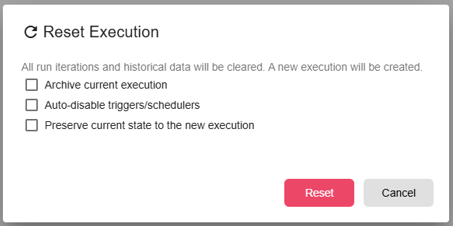
The archived execution can be viewed with its history and data anytime in the future, we store all the archived executions for development and production, more on this in the Manager manual.
Closing workflow builder: After you close the window in 5 seconds we shutdown the workflow to save the current state you had before until you open it again
Opening workflow builder: When you open a workflow that been active before and had an active triggers, we display a message to ask you if you want to start the active triggers or not:
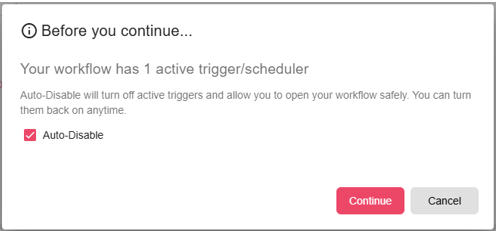
The workflow execution will be started instantly, with the choice you have selected, if you choose Keep active they will be active, if you auto disable them, they will be turned off.