Nodes
Nodes are the building blocks of a workflow, you configure your workflow using number of nodes that they are connected together and each one of them perform one action
Each node has its own settings and type, we call this a Node configuration and each time Node is run it has to be under an iteration Id, we call this a NodeExecution, by nature node can have input or multiple inputs using one or more ports and also can have output or multiple output using for now one port.
Actions
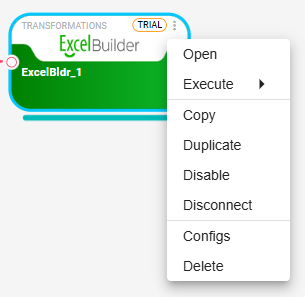
Node has number of actions we will go over them one by one in the coming sub-sections, to access the actions menu click on the 3 dots at the right top corner of the node:
Settings
Each node has its own settings, it contains things to tell this node what to do and perform, for example a file reader the settings will contain the file path.
To access the Node's settings dialog you can either double click on the node or using the actions menu
Properties
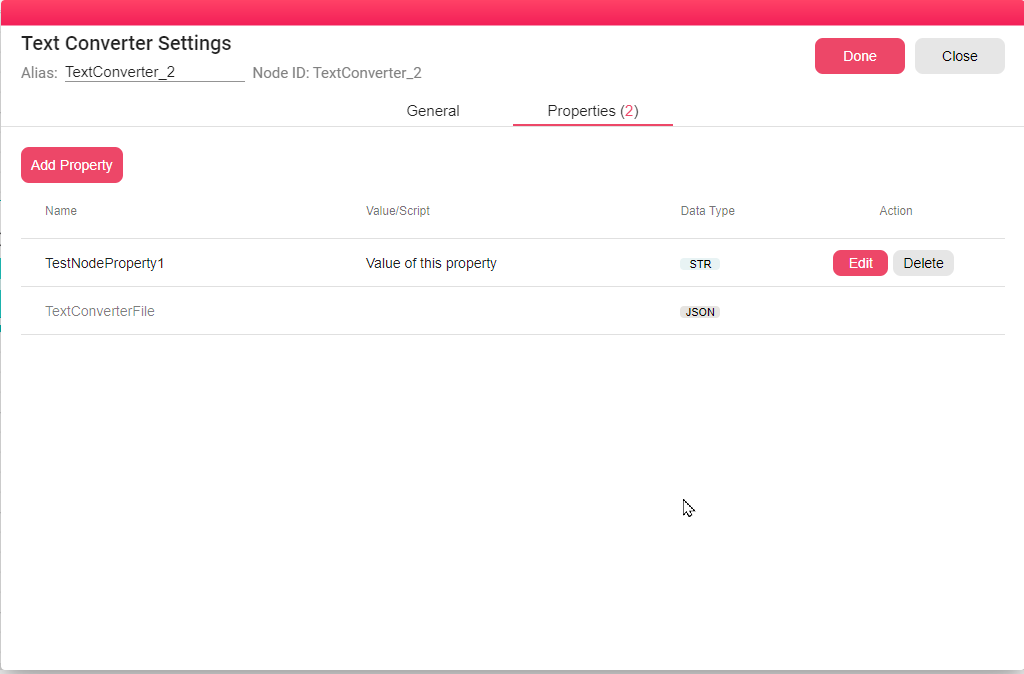
Each node has a place to define its own properties, properties can be either static values that when the node executes it defines them or script that will be executed each time the node is executed, more on properties later.
To access the node's properties open the node by double click on it, and go to Properties tab:
Enable/Disable
Sometimes you want to disable a node from execution, for example if you have a node that sends email, you tested it once but you want to disable it while testing, each node can be disabled separately, node when disabling a node the nodes that depends on it (Comes after it) will be also disabled, but when you re-enable this node they will be automatically re-enabled as well.
To disabled/Enable a node you can do this from actions.
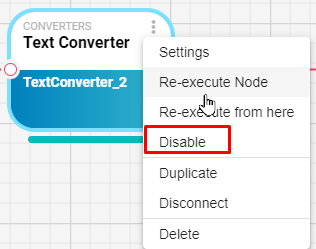
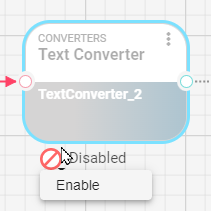
Disabled node will have a gray color like this, and can be re-enabled using the icon on the bottom:
Duplicate
If you click on actions -> duplicate you will create the same node with its settings but with a different node unique id.
Disconnect
When you click on disconnect on a specific node, you disconnect it from being executed by removing all incoming and outgoing connections from/to it, if it's a node that depends on input from a predecessor node it won't run when executing the workflow.
Delete
Deletes the node from the workflow, this action can be undoed
Execution
Will cover this in Workflow Execution section
Node Input
Each node can have an input or multiple inputs, if it's a source node for example VisualQuery which fetches data from a database it doesn't need any inputs (Inside the process of that node it goes to the database and fetches the data), when we talk about an input we mean any input connections connected to that node, we can see the inputs in the canvas easily, here is the inputs of a node:

This node has one input port. If it's connected you will see an arrow coming to this node.
Input can be a different data type for example if it's an Excel reader it should have an Input of a file, and then this node can process this file to generate an output of a Table which is in B2Data's term is a DataFrame, we will cover more on Data types section next.
More on Inputs/Outputs and how to see their data when executed in Run Iterations section (TODO: Add reference)
Node Output
Most nodes should have an output port, or in next releases multiple output ports, it's similar to the input in shape and can output any DataTypes we cover next.
To view the output port and if it's connected or not we can look at the canvas, for example this node output is connected:
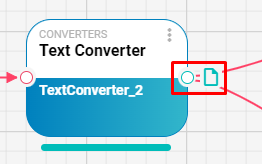
In this case the output is a file
Data Types
In the current version of B2Data we have 4 basic data types, when we say Data Type here is the type of outputs or inputs each node can take or generates, you can see what data type each node generates or take in each port by hovering over the port and a tooltip should appear like this:
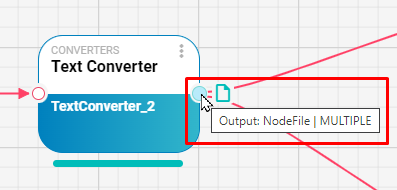
In this case the output is of Data Type NodeFile and can output this data to multiple nodes, and here in the screenshot it has 2 output connections to different nodes.
NodeFile
As a file object, each execution will have this file copied to a temporary folder for the execution iteration and can be viewed at any time. NodeFile has a preview and can be downloaded from this preview, in Run Iterations we cover how you can download the file.

DataFrame
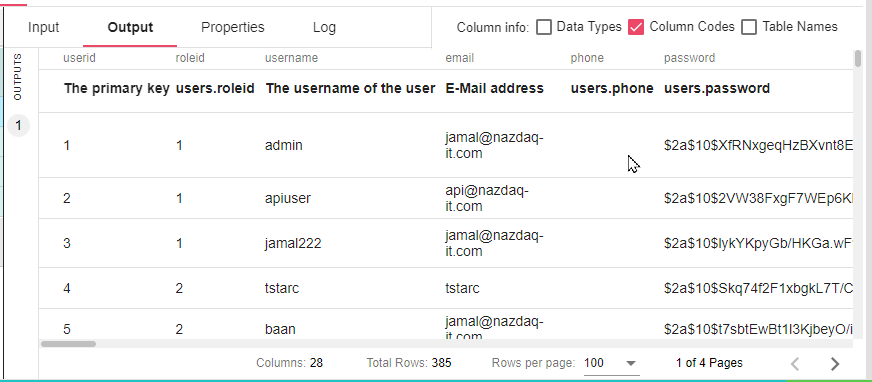
Is a tabular structure of the data, for example if you have a node that reads CSV file, the output port will output a DataFrame that will contain columns inside of it. We will cover more use cases in the General Nodes manual.
WebUrl
A URL object for example B2Output, outputs a web url to open B2Output App page, other nodes can output a link to view results for example: opens an external url to view a dashboard in an external system.

Object
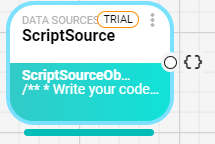
An Structural representation of an object you can think of it as a Json, for example a node that reads a REST endpoint that outputs a JSON, we read this JSON and convert it to an Object to be used in other nodes, here is an example of a node that outputs an object:
And when viewing the output data as an Object: