B2Transform
B2Transform Application Quick Overview
Formats
B2Win Suite can convert any report from BAAN to six different optional formats: Microsoft Excel, Microsoft Word, Text (Edit), PDF, HTML and XML
For each format, there are different settings and options, we will cover all options/settings for these formats in more details later in this chapter.

For each format in B2Transform, you have: Mode and More Formatting Options. For External reports you can also interact with the B2Design for Excel and Pdf formats.
Mode
This is the conversion mode for the report in the current format, for example for a PDF it can be Native Format, Designer or Plain Text

Will cover this in details for each format later.
More Options
For each format, you may have special formatting for the output document like logo, background, font size, margins… We will cover this in detail in each format section.
Excel
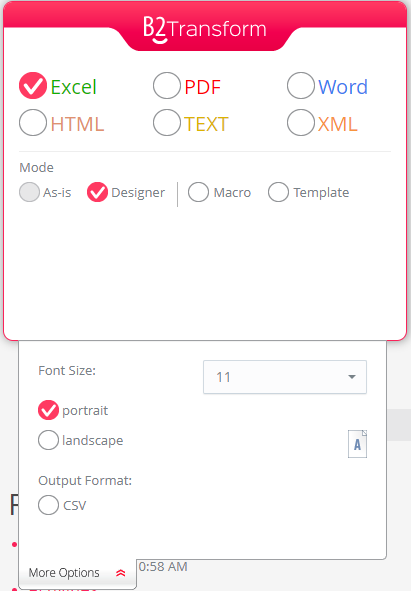
Conversion Modes:
- As-is - Report will be taken as-is into the chosen application with all headers and titles. Design will not be taken into account.
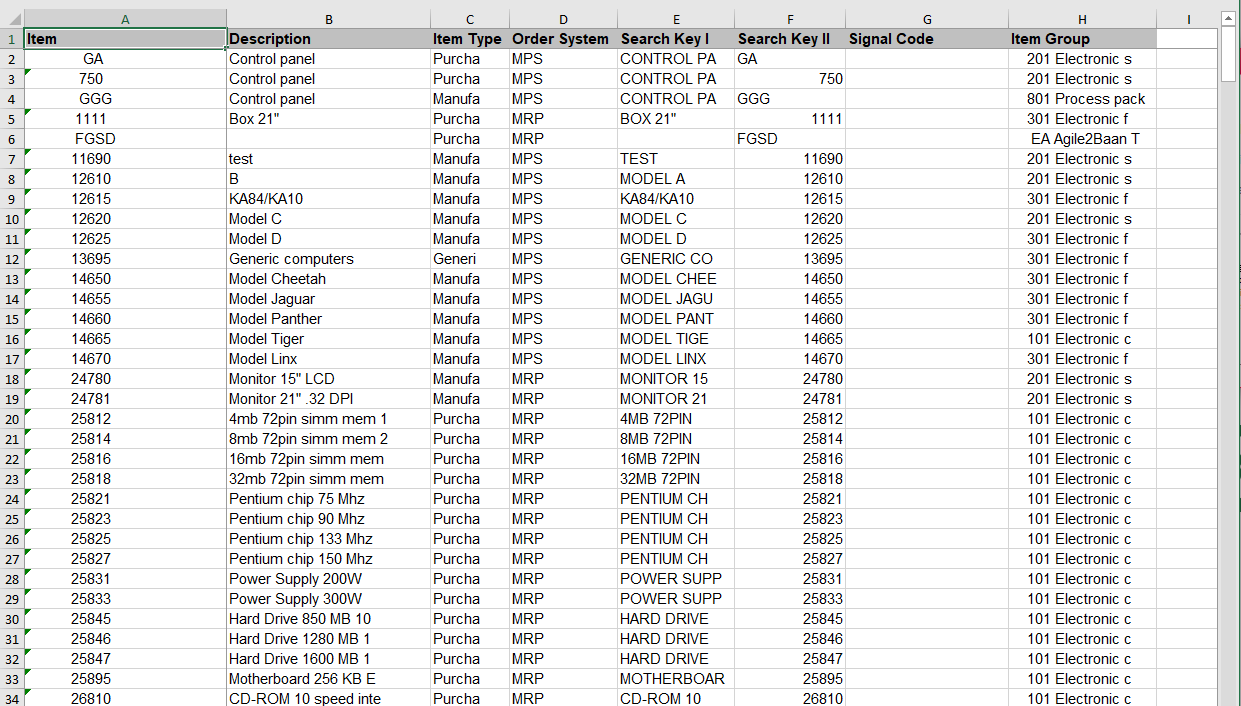
- Designer – For External Reports working with this mode will remove all headers and organize the resulting data in a table format, either automatically or based on the design done earlier by the Excel Designer.
- Macro – If checked it can only work when B2Win Client is connected and can activate the launch only in the B2Distribute.
You can run the Macro with the Designer or As-is Mode.

In More Options you can change the font size and page orientation for the resulted Microsoft Excel file or choose CSV which will convert the output to csv format (csv option is supported only with External Reports).

When macro is enabled then the report output will be exported to the chosen application while a predefined macro will run on the resulting data. Macro formats supported such as: MS Excel (XLS – supports older office version for macro, XLSM – macro – enabled workbook, XLTM – macro – enabled template, XLAM – Macro Enabled add-in).
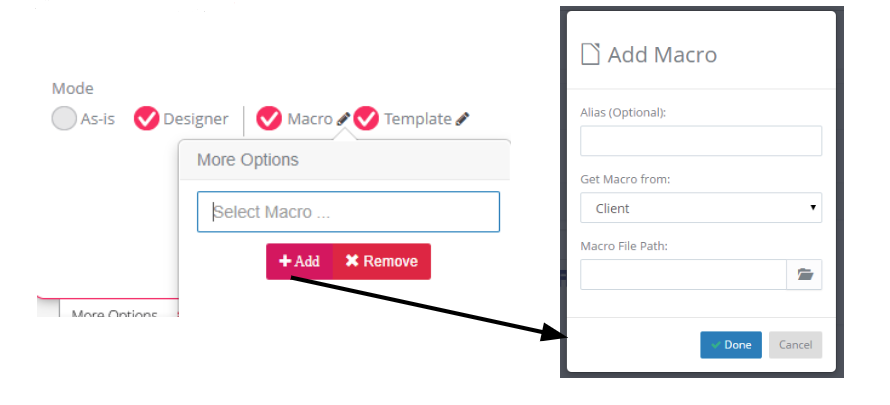
When choosing macro mode, you can add new macros for this report by pressing on the add button below:
You can either set the macro location on the client and then it will always run from this location. Or upload a macro on the server and then for each run it will be copied to the client and run from there.
- Template – You can also use an Excel file as a template. When you choose a template and click on run then the output file content will be copied to the output sheet defined for the template. You can add templates for this report by clicking on the Create Template button.

Here you can choose a template or create a new one. When you click on create a template you get the following:
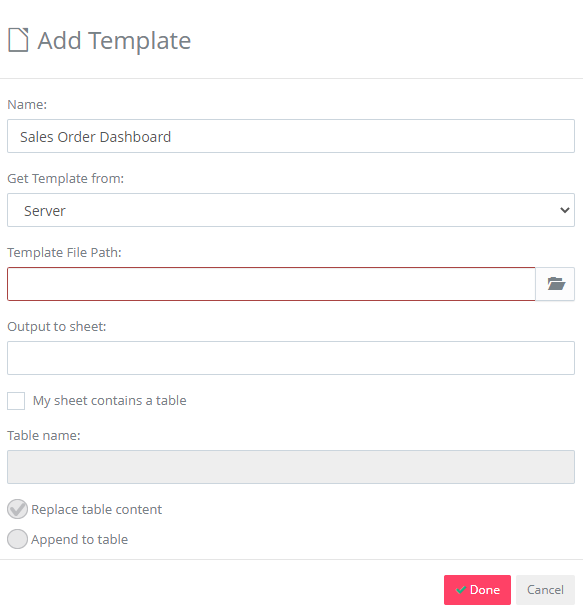
The template can be located on server, client, windows shared folder or you can upload it on server.

You can also take advantage of the Excel Tables feature. If your excel file has a table, you can specify the table name and the data will update this table, whether by replacing it or appending to it. If your sheet does not have a table, then the whole sheet will be replaced.
Word
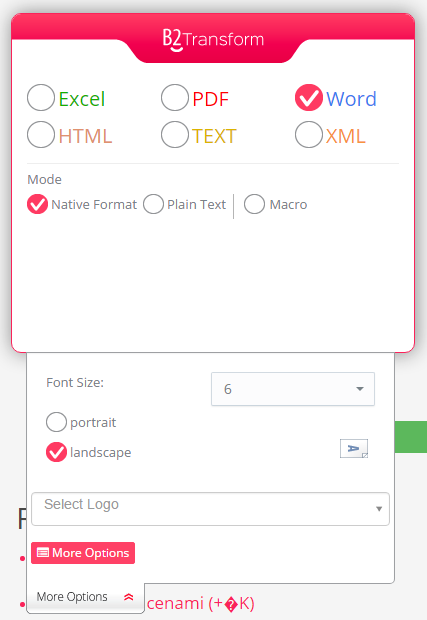
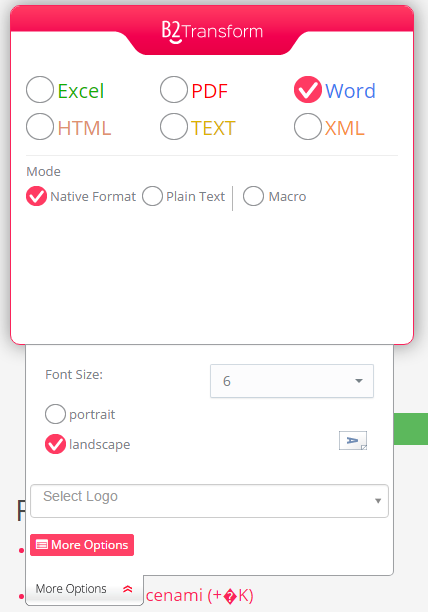
- Native Format: The report will be exported to the chosen application with all font definitions from Baan/ERP Ln. (Supported with External Reports only)
- Plain Text: External Report will be taken in text format into the chosen application with all headers and titles.
- Macro: If checked it can only work when B2Win Client is connected and can activate the launch only in the B2Distribute.
You can run the Macro with the Native Format or Plain Text Mode.

The report output will be exported to the chosen application while a predefined macro will run on the resulting data. Macro formats supported such as:
MS Word (DOC, DOT – Older office version macro support, DOCM – Macro-Enabled Document, DOTM– Macro-Enabled Template). You can add the macros files by pressing on the add button below:
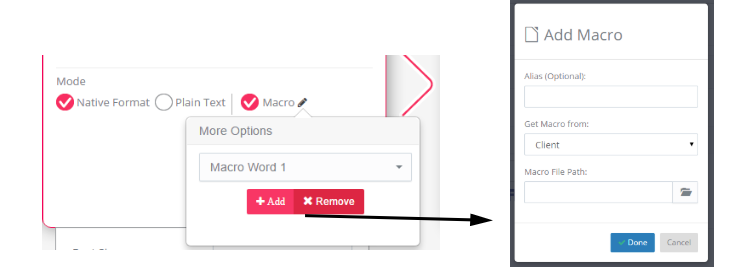
You can either set the macro location on the client and then it will always run from this location. Or upload a macro on the server and then for each run it will be copied to the client and run from there.
You can also select the logo from the list that was pre-defined by the administrator or someone with permissions, you can also set the font size and orientation.
In More Options you can set the paper type and the top margins for the output file.

Text
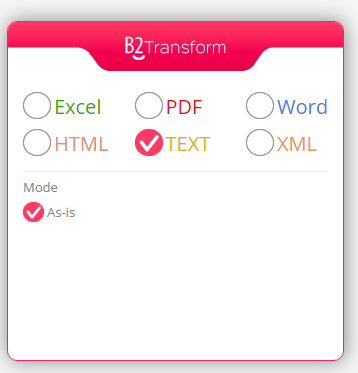
- As-is: External Report will be taken as-is into the chosen application with all headers and titles in txt format.
PDF
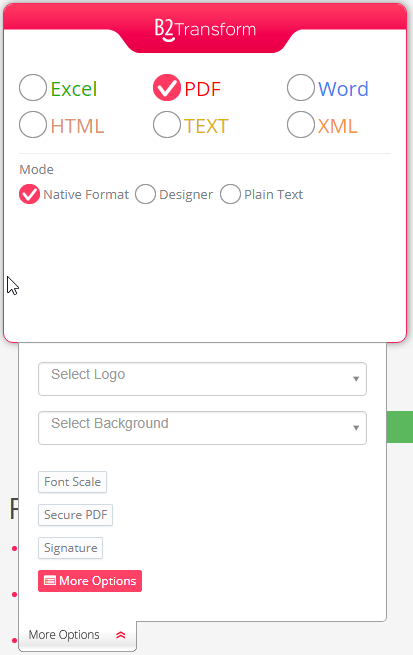
- Native Format: The report will be exported to the chosen application with all font definitions from Baan/ERP Ln. (This option supported with External Reports only)
- Designer: The Report generated using a design created by B2Design. (This option is supported with External Reports only)
- Plain Text: External Report will be taken in pdf format into the chosen application with all headers and titles.
In More Option You can select the Logo or Background that was pre-defined by the administrator or someone with permissions.
Font Scale: - This value decides the font scale in the resulting document.
- Vertical font scale – Scale the font vertically
- Horizontal font scale – Scale the font horizontally
Check the option Linked Scale – When both Vertical and Horizontal scaled have the same value. In this case you'll have one field for the font scale.

It is only applicable in native format and plain text, won't be shown in Designer mode
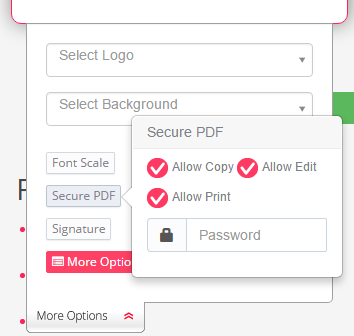
Secure Pdf:
You can choose the permissions and security for the converted pdf file, if you want the file to allow copying, editing and printing or not. And you can set a password so only people who know it, would be able to open the file.
Signature:
You can choose whether the report includes a signature by checking the box in the following window. Signature should be set for the current user in his Profile -> Settings.
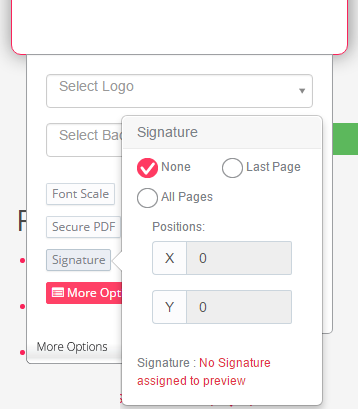
You can choose whether the signature will appear in All Pages or Last Page Only, also set the position of it in the page. When the position is not set in here, it will be taken from the user's Profile -> Settings -> Position.
Note that when signing with a digital signature, the "All Pages" option will be disabled.
Background:
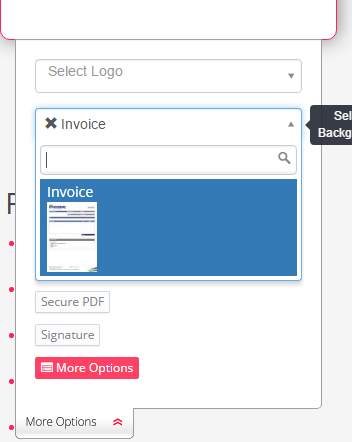
You can choose whether the report includes background by clicking on the Background button and select the background you want from the list.
More Options:
Here we have some basic settings for the report like: Paper Type, Orientation, Background and Margins.
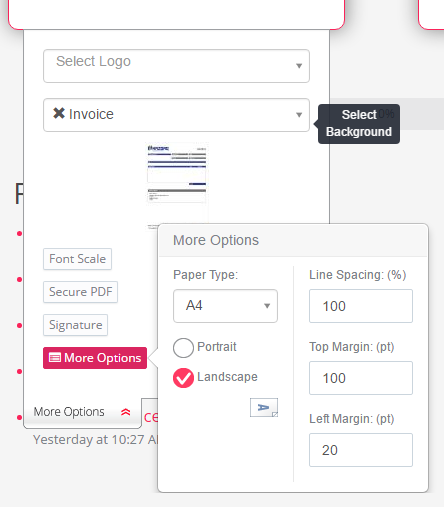
Note that Line Spacing value 100% is the default, 80% will decrease the spacing between the lines.
If the value for Top/Left margin is in blue color that means the value will be taken from the system defaults.
B2HTML
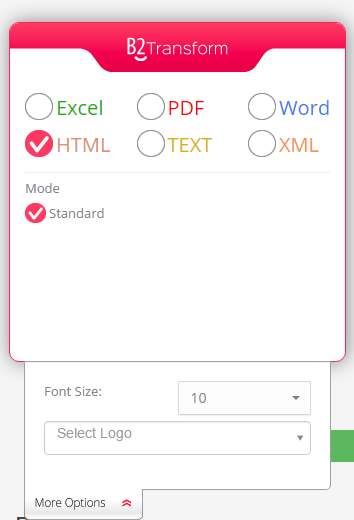
-
Standard: External Report will be converted to the standard format into the chosen application with all headers and titles
You can select the logo that was pre-defined by the administrator or someone with permissions as you can change the font size.
B2XML
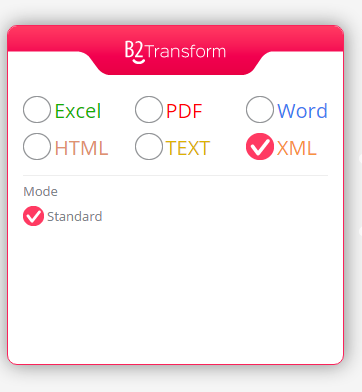
- Standard: External Report will be converted to the standard format into the chosen application with all headers and titles