Input-Form
For each workflow you can build an Input-Form for the end user interaction. When the developer publishes the workflow, then the end user can open B2Data Report, select this report and click on print, this is when he will get the Input-Form, right before a new iteration is created.
The developer is responsible for building the Input-Form when needed and determining what input is needed from the end user.
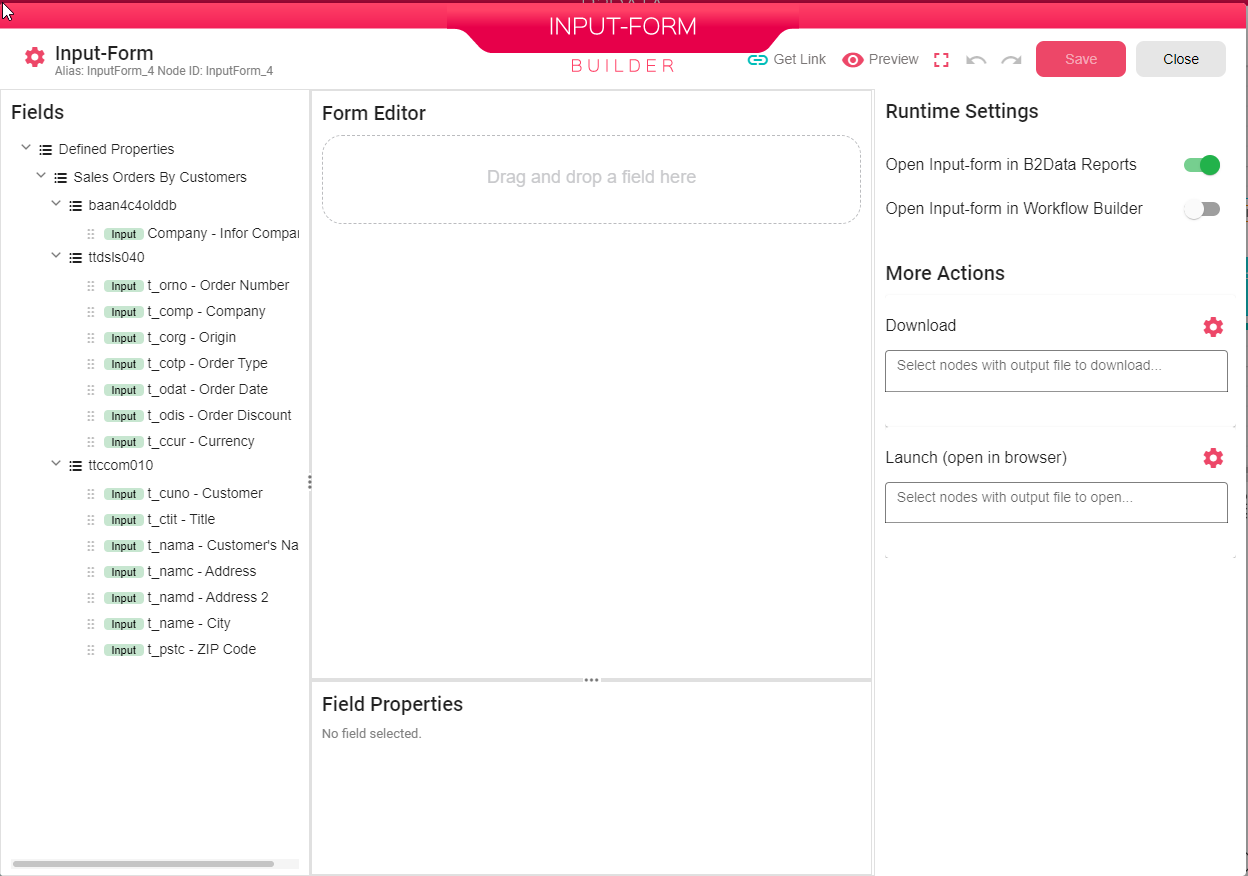
● Fields - The left part of the Input-Form contains a list of all nodes’ fields that could be added to the Form Editor. ● Form Editor - this is where you can drag any of the fields and drop them in the editor area. For some of the fields you can change the default value.
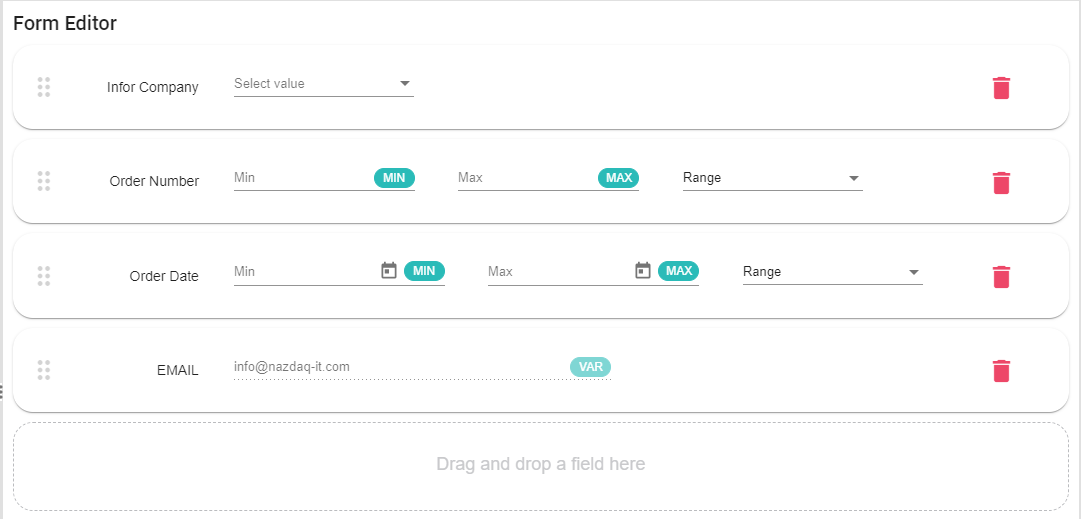
● Fields Properties - When you mark one of the fields in the editor you can edit its properties in the bottom part of the Input-Form Builder.

○ Label ○ Help Text ○ Required
● Runtime Settings - Running the workflow from B2Data Builder or B2Data Reports, you can choose whether you want the Input-Form to be opened or not.
● More Actions
○ Download - In case you want to download the output files of some of the nodes, you will need to select these nodes.

You can also choose if you want the files to be compressed before being downloaded By clicking on the gear next to the Download option

○ Launch - In case you want to launch the output files of some of the nodes, you need to select these nodes in the launch list.

Click on the gear button next to the Launch option to choose if you want the files to be opened in the browser or using the B2Win Suite Desktop Client.

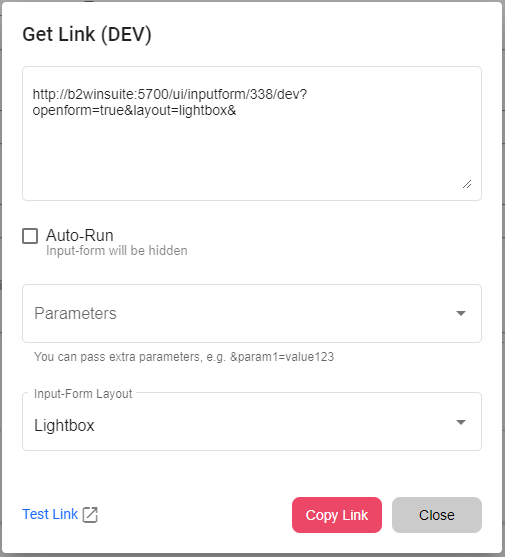
GetLink
In case you want to activate the workflow through the Input-Form from a different application, you can do that by running the right URL. You can click on the Get Link button and build your url according to your needs.